Monday, July 6, 2020

Help creating instructional videos

Hello,

Last week I went through the results of a survey of more than 500 teachers in a school district that I'm working with later this summer. The most popular topic in that survey was "help creating instructional videos." Based on my inbox over the last four months, I'd bet that "help creating instructional videos" would a popular topic if you surveyed your school district too.

If you're looking for some help making instructional videos or you have colleagues asking for help, take a look at a few of my favorite methods outlined below.

Screencast over Jamboard

Google's online Jamboard is a free drawing tool that I prefer over Google Drawings because I can create a series of drawings within the same project. In other words, I can create and share a progression of drawings to share with students. Use a free screencasting tool like Loom or Screencastify to record yourself talking while drawing on Jamboard and you'll have a simple instructional video at the end. Here's a video of how to do that with Loom and here's a video on how to do that with Screencastify.

Educreations

Educreations has been one of my favorite iPad apps for years. Even with the free version of Educreations you can use a variety of drawing tools, insert clipart onto your whiteboard, and even change the background to use graph paper as the basis for your instructional video. Another nice feature of Educreations is being able to share your videos with your students without having to upload them to YouTube or any other third-party hosting service.

Flipgrid

I feel like lately I can't mention making instructional videos without mentioning Flipgrid. Flipgrid has an integrated whiteboard feature that you can toggle off and on while recording a video to share with your students. The whiteboard function works in your web browser as well as in Flipgrid's iOS and Android apps. This video has an overview of how to use Flipgrid's whiteboard feature.

Zoom

Many of us have spent a lot more time with Zoom over the last few months than we ever thought we would. An upside to this is discovering lots of "hidden" features of Zoom. One of those features for Windows and Mac users is a whiteboard capability. Use that whiteboard function while recording a Zoom meeting and you have an instructional video completed. Watch this video to see how it works.

These were last week's most popular posts on FreeTech4Teachers.com:

1. 7 New Google Meet Features for Teachers

2. 5 Google Classroom Features You Might Have Overlooked or Forgotten

3. How to Work With PDFs in Google Classroom

4. How to Turn PowerPoint and Google Slides Into Narrated Videos

5. How to Record a Screencast With Flipgrid

6. An Easy Way to Overlay Historical Maps on Google Earth

7. Use Whiteboards in Google Meet Without Screensharing

Two PD Opportunities This Month

The Practical Ed Tech Virtual Summer Camp will be held two more times in July. The next session starts tomorrow! And the final session starts July 20th. Register here for the July session of your choice.

In two weeks I'll be hosting Teaching History With Technology. This is a five part course designed to help you develop new ways to create engaging history lessons and projects. Register now and use the discount code THWT2020.

This summer I'm working with a handful of schools and organizations to develop online professional development for teachers. If you'd like to work with me, please send me a note at richardbyrne (at) freetech4teachers.com to learn more about how we can work together.


As always, please feel free to email me anytime. I do my best to answer everything.

Have a great week!

~Richard

Unsubscribe | Update your profile | PO Box 171, Bryant Pond, ME 04219

Monday, May 11, 2020

Review Games for Students

Before I jump into this week's usual tip-of-the-week I need to say thank you to the many folks who have financially supported this newsletter and my websites. Without them I couldn't support the nearly 25,000 people who read this newsletter every week. Thank you to everyone who has joined a Practical Ed Tech webinar, registered for the virtual summer camp, and to Pixton Edu for their backing.

We're getting to the time of the year when I usually get a lot of requests for ideas for making review games for students. This year is not any different except that I'm getting requests for making review games that students can play at home. Here are five options for making review games that I have been recommending lately.

ClassTools

ClassTools.net offers a free service teachers can use to create their own educational games. Games made on ClassTools.net can be shared via email or embedded into a blog or website. (Yet another reason for having a class website or blog). ClassTools.net provides more than a dozen easy-to-use templates with which teachers can make educational games for their students. Take a look at the Fling the Teacher game to get started.

Flippity

Flippity.net offers more than a dozen easy-to-follow templates for making games and other activities through Google Sheets. One activity that I like is the Scavenger Hunt. Flippity calls it a scavenger hunt but it is more like a series of trivia questions that students answer to open digital locks. Try it yourself with this demo game.

TinyTap

TinyTap is a good iPad and Android app for creating your own review games based on pictures and diagrams. You can create games in which students have to identify parts of a picture or diagram. You can also build games in which your students have to assemble a puzzle by dragging and dropping pieces into place (the puzzle does not have to follow the jigsaw puzzle format). Students can play the games you create on their iPads, Android tablets, or on a laptop.

Quizalize

Quizalize is an excellent platform through which you can create and distribute online quiz games. Your students can play the games as a group in your classroom much like Kahoot. You can also have your students play the games at home. In fact, Quizalize offered the "play at home" option long before Kahoot did.

Quizalize lets you give assignments and practice activities to students based upon how they performed during a quiz game. For example, you can specify that any student who answers less than 75% of the questions correctly has to watch a video or read a review sheet. This differentiation feature isn't limited to just one score trigger. You can specify that students scoring 50-60% receive one type of review activity and students scoring 60-75% receive a different review activity.

Kahoot Challenge Mode

Kahoot is perhaps that best-known quiz game platform available today. Over the years it has steadily added features that make it easy to use in physical and online classrooms. One of those features is the Challenge Mode that you can use to have students play games individually at a time that works for them within a window of time that you choose. Kahoot, like Quizalize above, also offers a Smart Practice mode that gives students an opportunity to focus on the questions that they answered incorrectly during a Kahoot game or challenge. Smart Practice works in three phases. The first phase has students immediately try the missed questions again. The second phase is trying the questions again after 24 hours. And the third phase has students try the questions after 48 hours.

Two other features of Kahoot that I appreciate are the question bank and the ability to duplicate games. The question bank lets you import existing questions into your games. The duplication feature is great when you want to make a copy of a game then add or remove a question or two.

These were last week's most popular posts on FreeTech4Teachers.com:

1. Use Whiteboards in Google Meet Without Screensharing

2.Quickly Create Online Whiteboards for Your Students

3. How to Create Complete Sentence Requirements in Google Forms

4. Three Tools for Collecting Stories from Students and Parents

5. How to Blur Faces and Objects in Your Videos

6. Loom - Create Screencasts on Your iPad

7. Exploring and Visualizing Data Sets

Practical Ed Tech Virtual Summer Camp!

Registration for the Practical Ed Tech Virtual Summer Camp opened last week. One third of the early-bird tickets have already been claimed. This online PD event will feature ten live, interactive webinars on a wide array of topics applicable to every classroom. It will be held three times this summer. There is a June session and two July sessions. Register for the session of your choice here.

Free Webinar This Thursday

This Thursday at 3pm ET I'm hosting a free webinar titled A Framework for Using Educational Technology. I held it last week and many people asked if I would hold it again, so I am. Learn more and sign up here.


As always, feel free to hit reply to ask me anything about educational technology.

Have a great week!

~Richard

Monday, April 27, 2020

Video Puppet - Narrating Slides

These days I'm getting more questions than ever before about creating digital teaching materials. One quick way to do this is to take some of your existing slides and make a screencast of yourself talking over those slides. Another quick way to is to use a new tool called Video Puppet that will turn your slides into a narrated video.
Video Puppet will take your PowerPoint slides and convert them into a narrated video for you. If you're a Google Slides user you can download your slides as a PowerPoint file to then use in Video Puppet.

You can use Video Puppet for free without registering on the site. The limitation on the free plan is that your slideshow can have a maximum of twenty slides. That should be more than adequate for most classroom applications. Anything longer than that and students will probably tune out anyway. You're probably better off making two videos that have ten slides than one video that has twenty slides.

In this video I demonstrate how you can use Video Puppet to quickly create a video from your PowerPoint slides.
These were last week's most popular posts on FreeTech4Teachers.com:
Have a great week!
~Richard Byrn

Tuesday, February 25, 2020

13 Tools to Record Audio on Chromebooks

13 Tools to Record Audio on Chromebooks and Other Devices

Audio is a great learning and reflection tool. So I’ve put together a list of 13 Tools to Record Audio on Chromebooks and Other Devices.
13 Tools to Record Audio on Chromebooks and Other DevicesNow that we can add audio to our favorite Google Slides projects, we need to make sure we have some options for creating those audio files.
Chromebooks have become the most popular classroom device, now in millions of classroom worldwide.
Find the best tools for Chromebooks can sometimes be challenging.
So I put together this list of 13 tools to record audio on Chromebooks to help you find the best solution for you and your students.
Be sure you visit this post to learn How to Insert Audio in Google Slides and 25 Ways to Use Audio in Google Slides Projects to learn how to maximize this tool in the classroom.

13 Tools to Record Audio on Chromebooks and Other Devices

I did some digging to find you the best tools to record audio on Chromebooks. Most of these tools are web-based and will work on many other devices as well.
Some a completely free, some offer free and paid versions, and a couple are only offered on a paid model. Find what works for you and your students.
Remember, your file must be a .mp3 or .wav file in order to work in Google Slides, and it must be uploaded into Google Drive. To get the step-by-step directions, check out my tutorial: How to Insert Audio in Google Slides.
These are NOT ranked! They are listed in no particular order.

Online voice recorder

from 123 Apps (web-based) – FREE

13 Tools to Record Audio on Chromebooks and Other Devices
This web-based voice recorder app from 123 Apps is a free and simple way to record audio on a Chromebook or other laptops and desktops. No login needed. It is not compatible at this time with mobile browsers.
Vocaroo

(web-based) – FREE

13 Tools to Record Audio on Chromebooks and Other Devices
Vocaroo is an online tool that allows users to record, send, and download voice messages. It’s free and easy to use, but will not work on mobile devices.

Screencastify

(Chrome extension) – FREE and Paid versions

Screencastify is one of the most popular screen recorders used in education today. Did you know you can extract and export the audio? Yep! Click here to learn how to export the audio as an mp3.
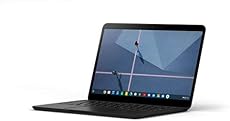
Google Pixelbook Go M3 Chromebook 8GB/64GB Just Black
By Google
$642.49$649.00
Rated 4.5 out of 5 by 75 reviewers on Amazon.com

WeVideo

(web-based and Chrome App) – FREE and Paid versions

Many teachers are already using WeVideo to create videos on Chromebooks, but did you know you can extract the audio from your video files? Yep! And this tools is available in both a free and paid version. Better yet, WeVideo works on Chromebooks (get the Chrome App), Windows, Mac, and iOS and Android devices.

Reverb Record – Share Your Voice

(web-based and Chrome extension)

Reverb Record lets you record and share voice notes, memos, and responses without an account. Create links that embed directly to Twitter, making it easy to share voice Tweets, and Reverb links can also be shared on forums and embeds on websites and blogs.
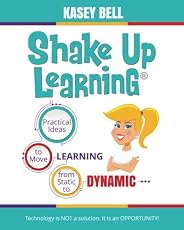
Shake Up Learning: Practical Ideas to Move Learning from Static to Dynamic
By Kasey Bell (Paperback - Mar 28, 2018)
$22.76$28.95
Rated 5 out of 5 by 227 reviewers on Amazon.com

Twisted Wave

(web-based and Chrome extension) – FREE and Paid versions

13 Tools to Record Audio on Chromebooks and Other Devices
TwistedWave is a browser-based audio editor. You only need a web browser to access it, and you can use it to record or edit any audio file. All the audio files are auto-saved in the cloud.

Talk and comment

(Chrome extension) – FREE

Talk and comment allows you to record audio voice notes on a Chromebook or other web-enabled device, and you can leave comments on any site. This free extension lets you record and send voice notes on all sites. Voice notes can be played even if you don’t have the extension installed. (Available also on Android.)
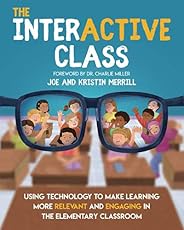
The Interactive Class: Using Technology to Make Learning More Relevant and Engaging in the Elementary Classroom
By Joe Merrill, Kristin Merrill (Paperback - Jan 4, 2020)
$22.49
Rated 5 out of 5 by 15 reviewers on Amazon.com

Cloud audio recorder

(web-based and Chrome App) – FREE

13 Tools to Record Audio on Chromebooks and Other Devices
Cloud Audio Recorder is a simple and easy to use audio and voice recorder. You can also save your files directly to Google Drive.

Speakpipe

(web-based) – FREE

13 Tools to Record Audio on Chromebooks and Other Devices
Speakpipe is a very simple and easy voice recording web app. I use it on my podcast, The Shake Up Learning Show, for listeners to leave voice messages that can be played on the podcast. A simple interface that makes downloading the file super easy.
The Wild Card: 7 Steps to an Educator's Creative Breakthrough
By Wade King, Hope King (Paperback - Jan 8, 2018)
$20.12$26.95
Rated 5 out of 5 by 308 reviewers on Amazon.com

Mic Note -Voice Recorder & Notepad

(web-based and Chrome App) – FREE

13 Tools to Record Audio on Chromebooks and Other Devices
Record audio and take notes at the same time! This web app was designed for recording lectures and meetings so you can take time-stamped notes that correspond to the recording. Bonus! This also syncs to Google Drive or Dropbox.

Apowersoft Free Online Audio Recorder

(web-based and desktop app) – FREE 

13 Tools to Record Audio on Chromebooks and Other Devices
Apowersoft Free Online Audio Recorder allows you to record audio on Chromebooks, Windows, Mac, or mobile devices without any installation.

Soundtrap

(web-based and Chrome App) – $249/year

Soundtrap may not be free, but it made this list because it is pretty awesome! Soundtrap is an audio recording and editing application with lots of integration and collaboration features. You can record voice, use beats, loop, and more!

Soundcloud

(web-based and Chrome App) – $4.99/month

13 Tools to Record Audio on Chromebooks and Other Devices
Create, record, and share the sounds you create with anyone using SoundCloud, the world’s largest community of sound creators. Also available on iOS and Android.

13 Tools to Record Audio on Chromebooks and Other DevicesWhat are your favorite tools to record audio on Chromebooks and other devices?
Please share in the comments below.
You may also love these posts:
© Shake Up Learning 2020. Unauthorized use and/or duplication of this material without express and written permission from this blog’s author and/or owner is strictly prohibited. Excerpts and links may be used, provided that full and clear credit is given to Kasey Bell and Shake Up Learning with appropriate and specific direction to the original content on ShakeUpLearning.com. See: Copyright Policy.