For you science guys to evaluate.
App Offers Excellent Way to Practice Chemistry Concepts | Tech Learning
Monday, December 21, 2015

Biology - YouTube
Crash Course Biology - Tune into this playlist to learn about Biology topics like natural selection, photosynthesis and more. This is a series of quick, 10 minute clips by Hank Green.
Biology - YouTube
Biology - YouTube
Veritasium - YouTube
Veritasium is a channel of science and engineering videos featuring experiments, expert interviews, cool demos, and discussions with the public about everything science.
Veritasium - YouTube
Veritasium - YouTube
Interactive Historical Map and Data Sets
History Department - Check this out
Free Technology for Teachers: Chronas - Interactive Historical Map and Data Sets
Free Technology for Teachers: Chronas - Interactive Historical Map and Data Sets
Poll Your Students With AnswerGarden
Great idea for polling or brainstorming.
Practical Ed Tech Tip of the Week – Poll Your Students With AnswerGarden | Practical Ed Tech
Practical Ed Tech Tip of the Week – Poll Your Students With AnswerGarden | Practical Ed Tech
Saturday, December 19, 2015
Tuesday, December 15, 2015
Design the Perfect Internal Newsletter with Google Slides
An internal newsletter is a great way to update your organization on internal news and events. Unfortunately, a Google Doc is not ideal for the fancy formatting and intricate styling that is often necessary for such a publication. But what is the best option for creating newspaper style layouts in Google Apps?
Today’s Top Post - Design the Perfect Internal Newsletter with Google Slides
Beyond being an excellent tool for making presentations, Google Slides has an amazing layout editor, which makes it the perfect option for designing your internal newsletter. Insert multiple images and separate rows of text, then use the grid lines to align them to your specifications. We take you through all the steps necessary to create professional looking publications, without needing to pay for professional publishing software.
Feedback Tool for Google Docs: JoeZoo Express - Synergyse
For those using Google docs for papers. Check out this feed back tool and report back on its practicality.
Feedback Tool for Google Docs: JoeZoo Express - Synergyse
Feedback Tool for Google Docs: JoeZoo Express - Synergyse
Monday, December 7, 2015
Tuesday, December 1, 2015
Productivity Guide for Google Apps
From the collaborative features baked into its core functionality to its intuitive, easy to use interface, Google Apps was designed to make people more productive. But the truth is, not everyone is making use of all the productive benefits the platform has to offer.
This guide is designed to be used by every member of an organization to maximize their productivity in Google Apps. Whether it is finding important emails faster in Gmail or managing your Google Calendar in the most efficient way possible, there is something for everyone. Our hope is that by using this guide you will not only be able to do your own job at a higher level but will also increase the operational efficiency of your entire organization.
Click here to read the guide.
This guide is designed to be used by every member of an organization to maximize their productivity in Google Apps. Whether it is finding important emails faster in Gmail or managing your Google Calendar in the most efficient way possible, there is something for everyone. Our hope is that by using this guide you will not only be able to do your own job at a higher level but will also increase the operational efficiency of your entire organization.
Click here to read the guide.
Monday, November 30, 2015
3 Lessons for Feedback & Tracking Growth in Google Docs | Tech Learning
This is an interesting read. Might prove helpful in your correction of student work.
3 Lessons for Feedback & Tracking Growth in Google Docs | Tech Learning
3 Lessons for Feedback & Tracking Growth in Google Docs | Tech Learning
Friday, November 27, 2015
Thursday, November 12, 2015
Resource created by an English teacher for English teachers.
GRMR.ME
Videos the teach and reinforce grammar instruction
Instruction > Correction
The work of a writing instructor never ends.Grmr.me can cut down on that work and improve student learning by providing instruction on common writing errors rather than simple correction.
Short URLs
Identify an error, provide a short URL. How many times have you written comma splice on a student paper? Hundreds? Thousands? From now on, simply write grmr.me/csp in the margin, and lead your student to effective learning.Writing Felonies
We call the most common errors writing felonies. Each writing felony has a video that demonstrates how to identify the error and how to correct it. Below each video are interactive quizzes that confirm a topic is mastered. Writers who pass the assessments earn a badge.Monday, November 9, 2015
VocApp - Create Multimedia Vocabulary Flashcards
For all you foreign language teachers - here is an idea.
VocApp - Create Multimedia Vocabulary Flashcards
VocApp - Create Multimedia Vocabulary Flashcards
Friday, November 6, 2015
Say This, Not That: Common Editing Instructions We Can Improve
When it comes to leaving great feedback, instructors have their own tried and true methods of showing a student how he or she could improve their work. We know some rely on a rubric-based system, while others use our inline commenting feature to leave lots of notes.
We researched ways to improve the feedback routinely given to students during the editing and revision process - improvements that can easily be applied in our MarkUp Annotator. All are small changes that can make a big impact.
(PS - we’re interested in what’s worked for you. Would love to hear what comments/instruction you’ve tweaked during the feedback process to great success. Leave us your story in the comments.)
Switch “Don’t...” for “Next time….”
It’s a small change, but a good one. When you spot something on an assignment that needs work, illustrating what to do next time can be more impactful than telling a student not to do something. A “don’t” statement says less about how to improve than a statement that substitutes (or adds) instruction for how to do better.
Trade “Great job” for “Great job because x”
Everyone loves to hear they did a great job. And perhaps your student really did nail this latest assignment. But the problem with “great job” is this: it’s not specific. There is no indication of what was done that was successful, and no indication of how to replicate this success in future projects. Try adding “because” to your comment and finishing the statement.
Avoid “Not there yet” in favor of “Need to work on x”
Similarly, the blanket “not quite there yet comment” fails to identify the areas in which a student needs work. Is it tone? Is it a good copyedit? Was an idea or theory improperly applied in the content? “Not there yet” could mean a lot of things. Substituting a statement that lists the areas that need work provide a little more direction on what to do next.
Change “Recommend doing x or y” to “You decide if you want to do x or y”
Perhaps you want to recommend that a student do one of two things to an assignment. Maybe the suggestion is picking between two apparent themes in a paper. It’s easy to say that you “recommend” a student do one of these two things, but more empowering is telling the student that he or she may “decide to do x or y.” This small change shifts decision-making back to the student and increases their sense of ownership in the product. The result is less “I’m making this change because my teacher told me to” and more “I’m deciding to make this change because it’s what I think is best.”
Jayne Miller wrote this on Sep 16, 2015
Saturday, October 31, 2015
C.G.P. Grey
 C.G.P. Grey - C.G.P. Grey is a YouTube channel that discusses politics, history, geography and more to give every student a rundown of some of the things we all really ought to know. C.G.P. Grey - C.G.P. Grey is a YouTube channel that discusses politics, history, geography and more to give every student a rundown of some of the things we all really ought to know. |
Tuesday, October 27, 2015
Classroom Flash Cards for learning Google Classroom.
Classroom Flash Cards for learning Google Classroom.
Tuesday, October 20, 2015
Everything You Need To Know In Google Classroom (Part 3)
Today’s Top Post - Everything You Need To Know In Google Classroom (Part 3)
Today, I present the conclusion to Everything You Need to Know in Google Classroom. Created by a Google Classroom expert, this guide should provide you with everything with the skills necessary to get your school up to speed on this amazing service. Today’s section of the guide delves into creating questions for your students all the way to making use of Google Classroom’s calendar integrations. Enjoy!
Monday, October 19, 2015
Crop & Edit Images in Google Slides
Practical Ed Tech Tip of the Week – Crop & Edit Images in Google Slides
Google Slides contains many useful features that students often overlook when they are designing presentations. One of those overlooked features is the image editing tools built into Google Slides. Google Slides makes it easy to crop and edit that image within your slides. In the video embedded below I demonstrate how to crop and edit images within a Google Slide.
Here are this week’s most popular posts on FreeTech4Teachers.com:
1. Write Music in Google Documents
2. Create a Thematic Picture Story On Thematic
3. Depression Quest – An Interactive Lesson About Depression
4. Three Examples of Using Instagram in K-12 Settings
5. How to Create Trading Cards for Historical and Fictional People, Places, and Events
6. How to Use Padlet – My Most Popular Tutorial Video
7. Turn-o-Phrase – A Fun Way to Learn Colloquial Phrases
1. Write Music in Google Documents
2. Create a Thematic Picture Story On Thematic
3. Depression Quest – An Interactive Lesson About Depression
4. Three Examples of Using Instagram in K-12 Settings
5. How to Create Trading Cards for Historical and Fictional People, Places, and Events
6. How to Use Padlet – My Most Popular Tutorial Video
7. Turn-o-Phrase – A Fun Way to Learn Colloquial Phrases
Throughout the year I conduct many in-person and online professional development workshops for teachers. If you would like to have me speak at your school or host an online event for your school, please click here to learn about my professional development services.
Wednesday, October 14, 2015
Tuesday, October 13, 2015
Everything You Need to Know in Google Classroom Part 2
Everything You Need to Know in Google Classroom Part 2
https://www.thegooru.com/everything-you-need-to-know-in-google-classroom-part-2/
https://www.thegooru.com/everything-you-need-to-know-in-google-classroom-part-2/
Thursday, October 8, 2015
Monday, October 5, 2015
Thursday, October 1, 2015
Monday, September 28, 2015
7 Tools for Adding Questions and Notes to Videos
For those of you who use videos in class or with your lessons, here are seven tools you might want to try to stimulate more engagement with your class while they watch the videos.
7 Tools for Adding Questions and Notes to Videos
7 Tools for Adding Questions and Notes to Videos
Thursday, September 24, 2015
Learning from PowerPoint: is it time for teachers to move on?
Learning from PowerPoint: is it time for teachers to move on?
Michelle Denise Miller, Northern Arizona University
For a brief period in the history of teaching, using PowerPoint automatically qualified you as a tech-savvy professor – an innovator who wouldn’t settle for the usual combination of staticky black-and-white overhead films and hand-scrawled chalkboard notes.
Now, it’s hard to believe that PowerPoint was once considered innovative by anyone. Popular criticism includes everything from tongue-in-cheek comments about death by PowerPoint
to serious claims that it fundamentally degrades how we think and communicate.
But much of today’s college instruction isn’t in face-to-face classrooms, a setting in which PowerPoint was traditionally used. It’s in the burgeoning field of online learning.
So if more learning is moving online, does that mean that teaching with PowerPoint is becoming a thing of the past?
Surprisingly, the answer is no.
Passive learning through PowerPoint?
Even though there’s little research that directly addresses whether PowerPoint affects learning in college students, critics have questioned its value in educational settings.
Some ask whether PowerPoint might indirectly undermine the quality of teaching by reinforcing a passive learning approach.
We know that lecturing is less effective than alternative methods. It therefore makes sense for teachers in face-to-face classrooms to question how much of their class time ought to be spent on slideshows.
But the fact is “slideshows” remain a popular method for presenting content in today’s online courses.
Technically, these are often not PowerPoints, but decks generated using other types of specialized programs.
And they may differ from standard in-class PowerPoint presentations in important ways.
For example, taking advantage of the increased flexibility of the online environment, they give students more control over how quickly to go through the material and when to backtrack. They can also have more interactive features, such as quizzes, that ask students to apply material while they are learning it.
Even so, the basic – and flawed – idea is the same: put the material in front of students, and learning will happen.
What’s wrong with slideshows in online courses
As a psychologist specializing in teaching techniques and course design, when I talk to faculty about teaching effectively with technology, I sometimes tell them to follow the ABS principle: anything but slideshows.
I’m only half-kidding with that blanket statement.

There are alternatives to using only PowerPoint for instruction.
Derek Keats, CC BY
After all, we learn with the same brains in online environments as we do face-to-face; the principles of learning don’t change just because the medium changes. And today’s learning theorists agree: active involvement trumps passive viewing.
Students need to grapple with challenging problems, practice skills, discuss and defend viewpoints. But for this kind of active learning to happen, instructors need to ensure they do not rely too heavily on slides.
There are alternatives: simulations, problem-based learning, even educational games are all proven methods for drawing students in. They also transplant well into online learning.
Using slideshows the right way
So do slideshows have any place in a well-designed online course? Possibly.
They can be used strategically for things they are best at: giving students an overview of new material, or providing a refresher on concepts students will need for an upcoming activity.
Slides are also great for for integrating visual illustrations. This is important because visuals – diagrams, figures, photos and the like – have a powerful impact on learning.
Visual information is almost always more memorable than sound, text or other modalities.
This isn’t because of the now-debunked idea that some people are “visual learners,” but more likely stems from how the brain codes images. There are separate systems for representing verbal and visual information in the brain. When we save information in both places, it is easier to recall.
Teachers don’t have to stick with static images, either. Even basic animations can illuminate conceptual relationships – such as cause and effect, or the unfolding of a process over time – in ways that text can’t.
Furthermore, as University of California, Santa Barbara researcher Richard Mayer has discovered, visuals and the spoken word pair up in powerful ways, so that audio plus visuals produce better learning than either alone.
Research also tells teachers some things not to do with visuals. Instructors should avoid purely decorative graphics, as these can actually hamper learning.
They should also eschew reading text verbatim, instead using a conversational, natural speaking style for voiceovers and verbal explanations.
What this means in the larger context of online learning
In sum, slideshows can be a useful part of online instruction, when used for the right things and designed in the right way. But they shouldn’t be the main, or the only, method of instruction – any more than lectures should dominate face-to-face classes.
But it’s not just instructors who need to hear this message.
Publishing and educational technology companies, who provide many of the tools that educators rely on, can do more to develop products that push beyond familiar formulas and draw on the latest learning science.
We need tools that make it easy to create assignments that ask students to apply what they have learned, in scenarios that are as realistic and challenging as possible.
These learning tools also need to be adaptive, adjusting the material and pace to the individual learner. This kind of educational technology does exist, but far more can be done to expand the available options.
Teaching in the age of technology comes with its own set of opportunities as well as challenges. And online education presents educators and tech developers with a rare opportunity to fundamentally rethink what we do.
Will we use it to explore new avenues for learning, or will we fall back on the the same old techniques that don’t work well in face-to-face classrooms?
Michelle Denise Miller, Director, First Year Learning Initiative at University College and Professor of Psychological Sciences, Northern Arizona University
This article was originally published on The Conversation. Read the original article.
Wednesday, September 23, 2015
Laughing, Learning, and Leading: Ten Reasons Google Drawings Should Be on Your Clas...
Ten Reasons Google Drawings Should Be on Your Classroom Radar...:
Blogger - Chantell Manahan
Since learning more about Google Drawings at last year's EdTechTeam Indiana Summit featuring Google Apps for Education, I can't stop using them! Google Drawings are a fantastic, highly underutilized tool for classroom use. As I've experimented with them and found even more uses, here are my top ten reasons you should give Google Drawings a try!
Blogger - Chantell Manahan
Since learning more about Google Drawings at last year's EdTechTeam Indiana Summit featuring Google Apps for Education, I can't stop using them! Google Drawings are a fantastic, highly underutilized tool for classroom use. As I've experimented with them and found even more uses, here are my top ten reasons you should give Google Drawings a try!
Craft of Poetry: Couplet | Tech Learning
English teachers might be interested in this link. You can go to the home page of this site for additional information.
Craft of Poetry: Couplet | Tech Learning
Craft of Poetry: Couplet | Tech Learning
Monday, September 14, 2015
RefME Helps Students Create Bibliographies
Practical Ed Tech Tip of the Week – RefME Helps Students Create Bibliographies
RefME is a nice service that students can use to create bibliographies. The service offers Android, iOS, and browser-based tools to help students save references, organize them into projects, and create bibliographies. In the video embedded below I provide an overview of how to use RefME’s browser-based tools.
It is worth noting that RefME and tools like it don’t always format citations perfectly. That said, I think they are still valuable because they help get students into the habit of citing their sources of information and keeping a record of the sources they use. Furthermore, if RefME or one of the other bibliography generators does make a mistake you can turn that into a teaching opportunity with your students. Point out the flaw to students and teach them how to correct it.
Here are this week’s most popular posts from FreeTech4Teachers.com:
1. Great Google Drive Add-ons for Teachers – A PDF Handout
2. Have You Tried Voice Typing In Google Docs? – It’s Easy to Use
3. A Round-up of Recent Google Classroom & Drive Updates
4. A Guide to Blogging and Examples of Classroom Blogs
5. Ten Great Tools for Telling Stories With Pictures – A PDF Handout
6. An Easy Way to Create Video Blog Entries
7. How to Use the Google Drive Templates Gallery
1. Great Google Drive Add-ons for Teachers – A PDF Handout
2. Have You Tried Voice Typing In Google Docs? – It’s Easy to Use
3. A Round-up of Recent Google Classroom & Drive Updates
4. A Guide to Blogging and Examples of Classroom Blogs
5. Ten Great Tools for Telling Stories With Pictures – A PDF Handout
6. An Easy Way to Create Video Blog Entries
7. How to Use the Google Drive Templates Gallery
Thursday, September 10, 2015
The Scientific Reason Why Bullets Are Bad for Presentations
The Scientific Reason Why Bullets Are Bad for Presentations
 You’ve probably heard this advice before: Don’t use bullet points in your presentations. But do you know why presentation design experts are so adamantly opposed to the bullet point format?
Here’s the simple, but perhaps surprising, explanation to why bullet points are bad for presentations: Bullet points make information more difficult to remember, especially when the bullet point lists are accompanied with auditory information. This is not a conjecture; it is backed by credible research.
The Value of Visualizations
In 2014, the International Journal of Business Communication published the results from The Use of Visualization in the Communication of Business Strategies, a study designed to gather empirical evidence regarding whether the use of visualization is superior to text in the communication of business strategies. The results of that experiment confirmed that lists of text are ineffective for presentations. Slides withvisuals are undeniably more effective than slides with text.
Specifically, the study concluded:
Subjects who were exposed to a graphic representation of the strategy paid significantly more attention to, agreed more with, and better recalled the strategy than did subjects who saw a (textually identical) bulleted list version.
In other words, when your slides are comprised of lists of text, your audience will struggle to pay attention to your slides, they will find it difficult to agree with your message, and they will retain a less-than-ideal amount of the information.
The Limits of Working Memory
Digging deeper into the reason bullet points are bad, Dr. Chris Atherton, an award-winning lecturer in psychology and a user experience consultant for organizations such as Skype and the BBC, discovered that the limits of working memory are to blame for the failure of bullet points.
In this 2011 speech, Dr. Atherton details the results of her research:
At the beginning of her lesson, Dr. Atherton explains that when you accompany a lecture with bullet point slides, your audience will switch between reading and listening. This type of task switching is cognitively exhausting.
When presenters minimize the cognitive exertion required to absorb the information by avoiding long lists of text on their slides, audience members are able to use their remaining cognitive capabilities to actually process the information being presented. By actively processing the information instead of attempting to simultaneously read the slides as well as listen to the presenter, audience members are more likely to retain the meaning of the presentation.
Dr. Atherton recommends creating slides with minimal text to limit the extraneous load of your presentation. In addition, she also recommends using visuals to communicate complex concepts. Since the area of the human brain that processes visuals has a working memory capacity that is separate from the short-term memory limit of the linguistic and auditory processing areas of the brain, you expand the amount of information that audience members can process by utilizing visuals on your slides.
Putting This Research to Work
Both studies mentioned above suggest that meaningful visuals should be utilized in lieu of text-based explanations, when possible.
On that note, Dr. Atherton warns presenters not to use Death by Powerpoint clip art. This study, by Ronald A. Berk at The Johns Hopkins University, validates Dr. Atherton’s wariness of clip art with its conclusion that irrelevant pictures accompanying text and sound effects decrease learning.

If you cannot substitute visuals for your text, remove unnecessary words from your explanations to limit the reading you demand of your audience.

In addition, instead of listing multiple points on one slide using a bulleted list, give each point its own slide so your audience is not tempted to engage in mentally exhausting multitasking during your presentation.

Additional Resources:
About the Author
Leslie Belknap is the Marketing Director for Ethos3 as well as a board member for TEDxNashville. Say hi to Leslie on Twitter; she manages tweets for Ethos3.
Google Doc Collaboration Update
This Docs Update Adds So Much Clarity To Collaboration
Have you ever shared out a Google Doc only to come back to it a few hours later and it looks completely different? Keeping up with which users made which changes to a shared document can be difficult. But knowing who was responsible for each edit is crucial for accountability.
Google recently solved this problem by adding a new option to the Google Docs interface specifically for viewing recent edits and the editors that made them. Simply click the “See New Changes” button next to where it says “Help” on the Doc navigation bar and view the whole edit history as well as who made the edits. It’s time you got the full picture when collaborating.

Monday, August 31, 2015
Back-to-School Apps for the Organized Student
Back-to-School Apps for the Organized Student
By KIT EATON and DALLAS JENSEN on Publish Date August 26, 2015.
Students enjoying their last days of summer break have the threat of back-to-school time hanging over their heads, like the sword of Damocles. If that Damocles reference has you confused, why not look up the ancient story using the Google app? Then continue reading this column to discover other apps that can help students with their studies and make the back-to-school transition smoother.
Among the apps worth considering is gFlash+, which takes flashcards to a whole new level. You can create digital cards and write facts that you need to remember on them (“e to the power of i times pi is negative 1,” or some such). Use those cards to quiz yourself.
You can embed photos, audio files or videos, or all three, into flashcards to make them more visual and interactive. Users can share their flashcard sets with others through email, so a whole study group could benefit.
The core app, which allows users to create unlimited card sets, is free on iOS and Android. The pro version, which costs $4, gets rid of ads and includes organizing features and more. You can also pay to get access to card sets from third-party publishers, including big names in education like McGraw-Hill.
StudyBlue is an alternative flashcard app with many of the same features, including quizzes and card sharing, but a cleaner, more minimalistic look. Users can see millions of flashcards created and shared by other students and teachers.
To use most of the app’s features, StudyBlue users need to create a free account on iOS and Android. Upgrading to the pro edition gives users access to extras like the ability to customize the formatof your flashcards. StudyBlue’s pro level is somewhat pricey at $18 a month or $80 a year.
Note-taking is a vital part of student life, which is one reason to check out the Notability app. Notability, $6 for iPhones and iPads, lets users sketch on their screens, take handwritten notes or type notes. Typed notes don’t have to be in a linear document style — text boxes can be added anywhere on the page. Students can also annotate source material that is in PDF form directly from the app. And the app lets users make audio recordings of lectures or discussions so they can review a lesson later.
Notability also remembers the order in which you made your sketches and notes, and shows them at the appropriate points when you play the audio back. The app integrates with cloud services like Dropbox and iCloud and social media platforms like Twitter, making it easier to share notes with classmates.
On Android, Papyrus is a great alternative to Notability, providing many of the same functions. Users can take handwritten notes, make sketches using drawing tools, type in text and annotate images.
But while Papyrus is Notability’s equal in looks and ease if use, it lacks audio recording capabilities. To annotate PDFs, you will have to pay for an upgrade. Paid extras such as this cost $2 or more.
For students needing a good graphing calculator, the Quick Graph calculator app, free on iOS, is a popular choice. Its range of features include 3-D equation plotting, and its gesture-based interface is easy to control. An upgrade for more features costs $2.
Graphing Calculator by Mathlab is similar app and free on Android, and it has even more features, including a full scientific calculator mode. Its complexity, however, with many layers of options and menus, can get confusing.
Keeping track of class times, assignment details and test dates can be tiresome. But myHomework Student Planner , free on iOS and Android, can help keep a schedule organized. Its best features are a clean appearance and the ability to keep track of events on a time-based, period-based or block-timing schedule.
For the record, in the ancient story, Damocles pandered to his king, Dionysius, exclaiming how lucky Dionysius was to have so much authority. The king offered to trade places with Damocles, who accepted — only to find a sword hanging above the throne held up by a single horsehair. The point: With power comes constant danger.
Animated GIF images that have been transformed into memes can be found all over the web and social media. Giphy Cam, free on iOS, lets you easily create animated GIFs and add text, filters and special effects.
By KIT EATON and DALLAS JENSEN on Publish Date August 26, 2015.
Students enjoying their last days of summer break have the threat of back-to-school time hanging over their heads, like the sword of Damocles. If that Damocles reference has you confused, why not look up the ancient story using the Google app? Then continue reading this column to discover other apps that can help students with their studies and make the back-to-school transition smoother.
Among the apps worth considering is gFlash+, which takes flashcards to a whole new level. You can create digital cards and write facts that you need to remember on them (“e to the power of i times pi is negative 1,” or some such). Use those cards to quiz yourself.
You can embed photos, audio files or videos, or all three, into flashcards to make them more visual and interactive. Users can share their flashcard sets with others through email, so a whole study group could benefit.
The core app, which allows users to create unlimited card sets, is free on iOS and Android. The pro version, which costs $4, gets rid of ads and includes organizing features and more. You can also pay to get access to card sets from third-party publishers, including big names in education like McGraw-Hill.
StudyBlue is an alternative flashcard app with many of the same features, including quizzes and card sharing, but a cleaner, more minimalistic look. Users can see millions of flashcards created and shared by other students and teachers.
To use most of the app’s features, StudyBlue users need to create a free account on iOS and Android. Upgrading to the pro edition gives users access to extras like the ability to customize the formatof your flashcards. StudyBlue’s pro level is somewhat pricey at $18 a month or $80 a year.
Note-taking is a vital part of student life, which is one reason to check out the Notability app. Notability, $6 for iPhones and iPads, lets users sketch on their screens, take handwritten notes or type notes. Typed notes don’t have to be in a linear document style — text boxes can be added anywhere on the page. Students can also annotate source material that is in PDF form directly from the app. And the app lets users make audio recordings of lectures or discussions so they can review a lesson later.
Notability also remembers the order in which you made your sketches and notes, and shows them at the appropriate points when you play the audio back. The app integrates with cloud services like Dropbox and iCloud and social media platforms like Twitter, making it easier to share notes with classmates.
On Android, Papyrus is a great alternative to Notability, providing many of the same functions. Users can take handwritten notes, make sketches using drawing tools, type in text and annotate images.
But while Papyrus is Notability’s equal in looks and ease if use, it lacks audio recording capabilities. To annotate PDFs, you will have to pay for an upgrade. Paid extras such as this cost $2 or more.
For students needing a good graphing calculator, the Quick Graph calculator app, free on iOS, is a popular choice. Its range of features include 3-D equation plotting, and its gesture-based interface is easy to control. An upgrade for more features costs $2.
Graphing Calculator by Mathlab is similar app and free on Android, and it has even more features, including a full scientific calculator mode. Its complexity, however, with many layers of options and menus, can get confusing.
Keeping track of class times, assignment details and test dates can be tiresome. But myHomework Student Planner , free on iOS and Android, can help keep a schedule organized. Its best features are a clean appearance and the ability to keep track of events on a time-based, period-based or block-timing schedule.
For the record, in the ancient story, Damocles pandered to his king, Dionysius, exclaiming how lucky Dionysius was to have so much authority. The king offered to trade places with Damocles, who accepted — only to find a sword hanging above the throne held up by a single horsehair. The point: With power comes constant danger.
Animated GIF images that have been transformed into memes can be found all over the web and social media. Giphy Cam, free on iOS, lets you easily create animated GIFs and add text, filters and special effects.
Monday, August 24, 2015
Quickly Create Vocabulary Study Sheets from Documents


Practical Ed Tech Tip of the Week – Quickly Create Vocabulary Study Sheets from Documents
Vocabulist is a neat tool that enables students to quickly create vocabulary study sheets from a document. Each word extracted from a document is matched to a definition through Vocabulist. If the definition rendered isn’t exactly right, students can modify it within Vocabulist. Once the list of words and definitions is set students can download the list as a PDF or export the list to Quizletwhere it will then be turned into a set of digital flashcards. (Students must have a Quizlet account). In the video embedded below I demonstrate how easy it is to create a vocabulary study sheet through Vocabulist.
Tuesday, August 18, 2015
Welcome back to Quizlet, Teachers!
Welcome back to Quizlet, Teachers!
News · Posted by Sophia yesterday

It's a new school year and we're launching a bunch of new features to make Quizlet even more powerful for teachers. Check them out and let us know what you think!
Quick and Easy Class Setup
Getting all of your students into a class on Quizlet has always been a major pain point. Our new Bulk Email Invite option aims to fix that in time for school this year.
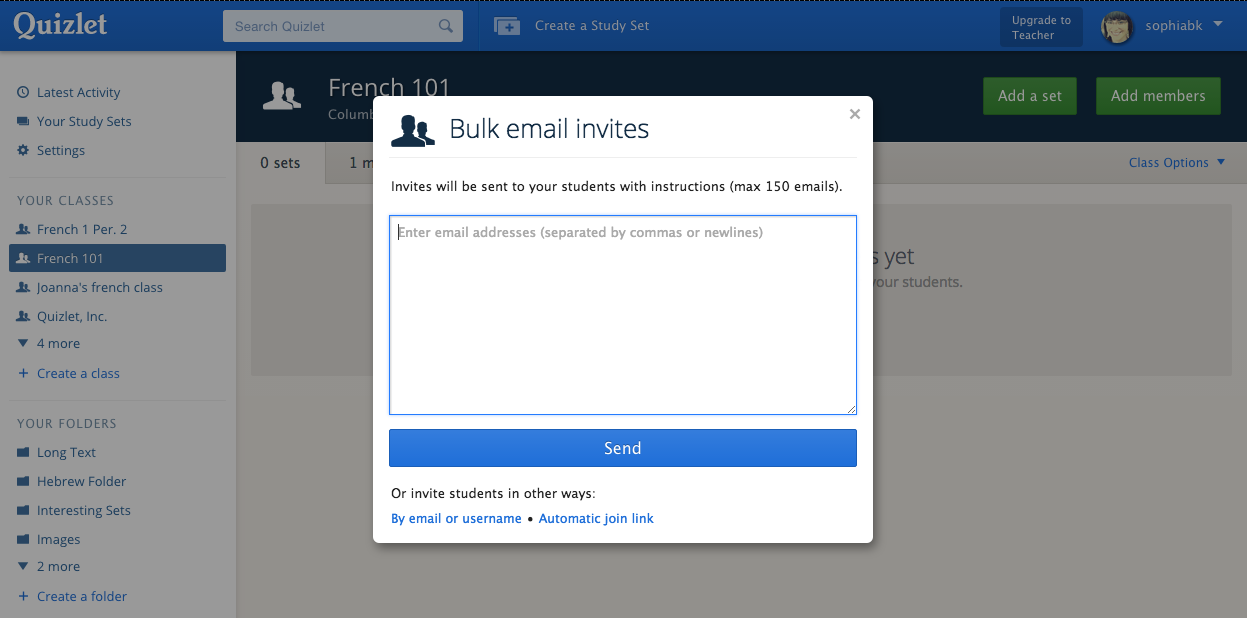
You can invite all of your students to your Quizlet classes at once (up to 150 at a time), and Quizlet will send an email invite to each student. Students can sign up for a free Quizlet account or log into their existing account to accept the invite and join your class. Learn more about how to add students to your classes.
Google Classroom & Quizlet Integrations
Are you a teacher who uses Google Classroom? Google Classroom courses can now become Quizlet Classes in just a few clicks.
Quizlet Class Integration


Connect your Classroom account to Quizlet, select the courses you'd like to add to Quizlet, and we'll invite all of your students to sign up or log in and join your class. Learn more here.
Share to Google Classroom
You can also post a Quizlet study set directly to your Google Classroom course.

Click on the "Share on Google Classroom" button from any of your Quizlet sets, and students will see the link in their course stream.

Improved Image Uploading
This is a Quizlet Teacher feature.
Images can make studying much more engaging for students, and now we've made it even faster and easier to add images to study sets.

Select as many images from your computer as you need and drag them onto the page while you're creating a study set. Learn more about uploading your own images.
Improved Class Progress
This is a Quizlet Teacher feature.
Class Progress shows you how your students are doing on Quizlet. Our latest updates streamline Class Progress and make it more informative.

Click on the "Class Progress" tab on any set you've created to see how and when your students have studied.
If your students are in a Quizlet class, you can also see which study modes they've used and their best scores for Test, Scatter, and Space Race. Learn more.

Quizlet Teachers also have an additional "students" sorting option on the terms list. It shows which terms your students are struggling with most by displaying students' aggregate performance on individual terms.

Subscribe to:
Posts (Atom)
inShare